
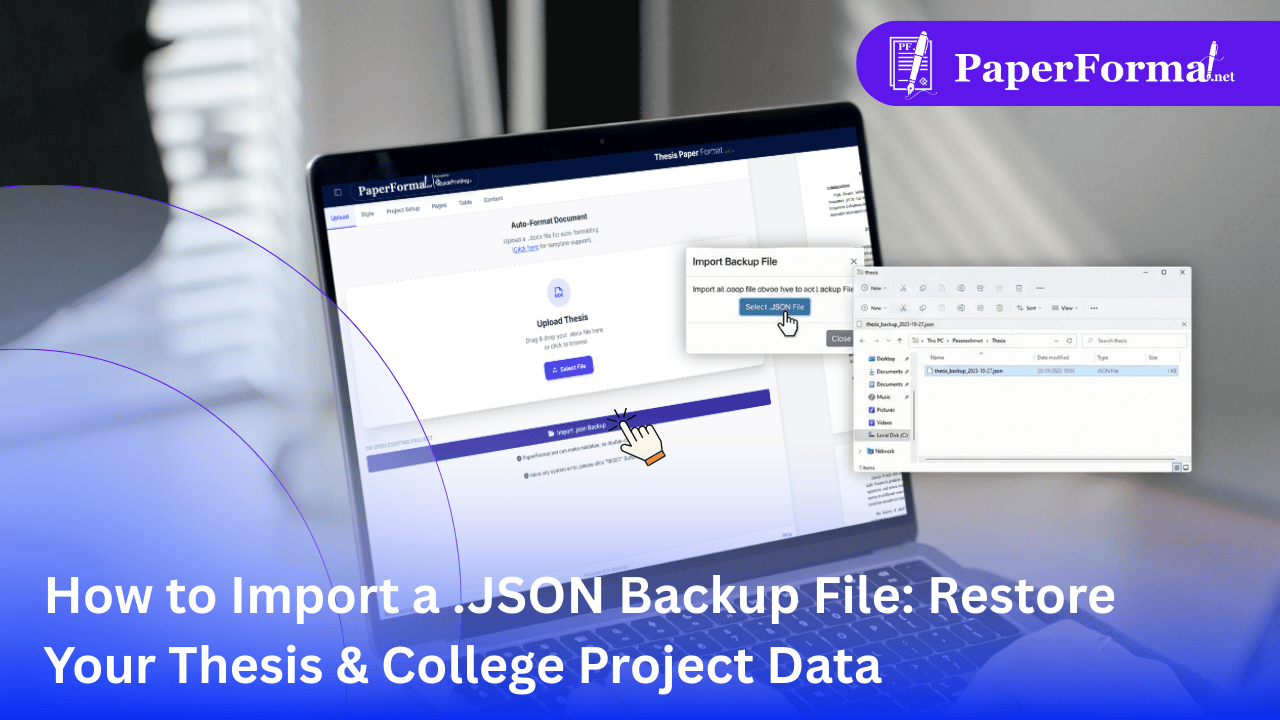
Never Lose Your Formatting Progress Again
In the world of thesis formatting and college paper submissions, data loss is a nightmare. You have spent hours adjusting margins, styling headers to meet institute standards, and arranging complex tables.
At PaperFormat.net, we use a specialized .JSON (JavaScript Object Notation) file system to handle backups. Unlike a standard Word document, a .JSON backup saves the entire state of your workspace.
The Import .JSON feature is essentially a time machine for your project. Whether you are switching computers, recovering from a browser crash, or reverting to an older version of your project paper, this tool restores everything instantly.
Step-by-Step: Importing Your .JSON Backup
Follow these simple steps to reload your institute project report or thesis into the portal.
Step 1: Locate Your Backup File
Ensure you have the valid .json file that you previously exported from PaperFormat.net.
- Note: Do not try to open this file with Microsoft Word or Notepad. It is coded specifically for our thesis formatting portal.
Step 2: Access the Portal
- Open your browser and log in to PaperFormat.net.
- You can do this from the Dashboard or from within an empty New Project.
Step 3: The Import Function
- Click "Upload" tab.
- Click the "Import .json backup" button.
Step 4: Select and Restore
- A file browser will open. Select your specific
.jsonbackup file (e.g.,thesis_backup_PaperFormat.json). - Confirm: The system might ask for confirmation as this will overwrite any content currently on your screen.
- Processing: The engine reads the file and reconstructs your document, applying all your college paper formatting rules, fonts, and images instantly.
Why Use .JSON Instead of Just Saving Text?
For high-level institute paper formatting, simple text saves aren't enough. Here is why the JSON import is superior:
- Preserves Global Settings: It remembers that your university requires a 1.5-inch left margin and Times New Roman font. You don't have to set these up again.
- Equation & Image Data: It keeps your mathematical equations in their editable vector state, allowing you to modify formulas later.
- Cross-Device Portability: You can export a JSON file from your library computer and import it on your home laptop. It carries your entire workspace with you.