
The Final Step: Generating a Print-Ready PDF
In IEEE paper formatting and Springer LNCS workflows, the final PDF must meet strict technical standards:
- Embedded Fonts: All fonts must be embedded so the document looks the same on every computer.
- Vector Graphics: Equations and charts must remain sharp at any zoom level.
- Margin Compliance: The text must not intrude into the binding gutter.
PaperFormat.net handles all of this automatically. When you click "Generate PDF," our engine compiles your workspace into a compliant file ready for upload to IEEE Xplore or SpringerLink.
Step-by-Step: Downloading Your File
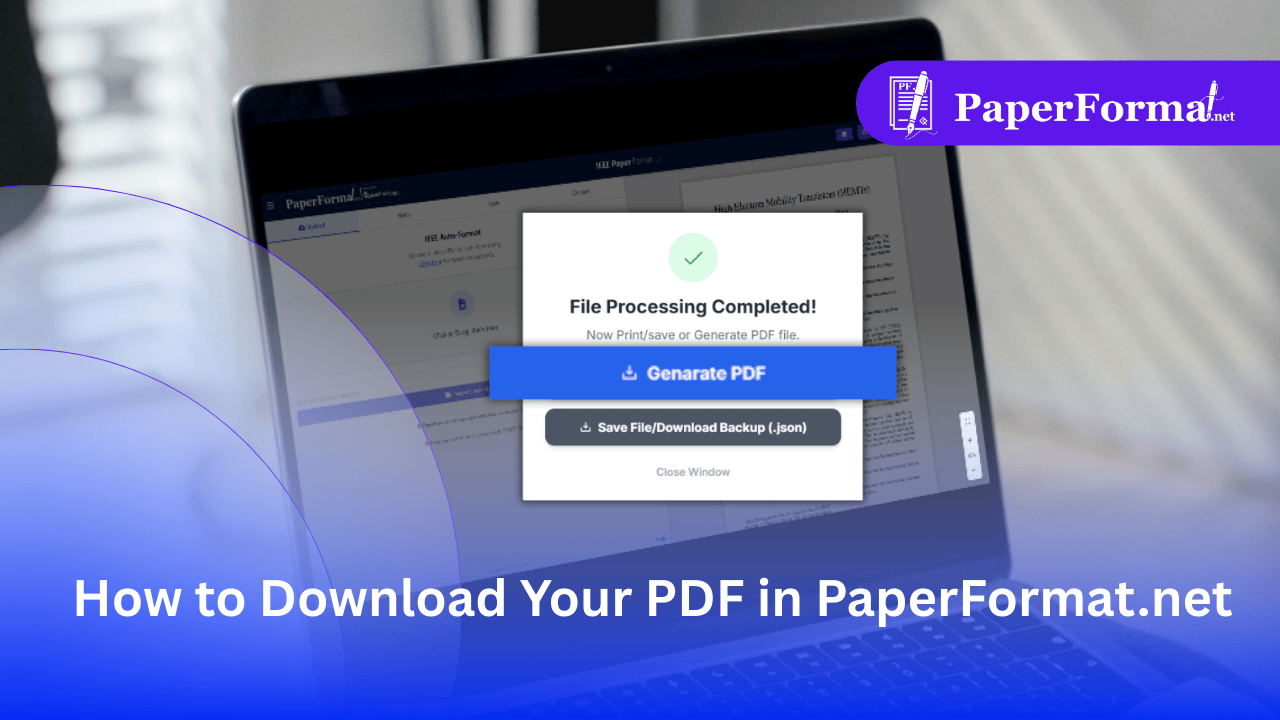
Refer to the screenshot above and follow these steps to create your final document.
Step 1: Final Review
- Before exporting, verify your Table of Contents and Page Numbers in the preview pane.
- Ensure your Author Block and Biographies (if applicable) are displaying correctly.
Step 2: Click "Export File"
- Look at the top right corner of the navigation bar.
- Click the button labeled "Export File" (circled in orange in the image).
Step 3: Wait for Processing
- The system will briefly scan your document to render high-quality LaTeX equations and flatten images.
- A popup modal will appear confirming: "File Processing Completed!".
Step 4: Select "Generate PDF"
- You will see two options. For your final submission, choose the first one:
- Click the blue button: "Generate PDF" (highlighted in the image).
- Action: Your browser will download the file (e.g.,
IEEE_Paper.pdforSpringer_Paper.pdf) to your local drive.
Common PDF Questions
- Why not just "Save as PDF" from the browser? Browser printing often distorts margins and removes background colors. The "Generate PDF" button uses a dedicated server-side engine to ensure exact IEEE or Springer compliance.
- Can I edit the PDF? No. The PDF is a final "print" version. If you need to make changes, edit the project in the portal and generate a new PDF.