
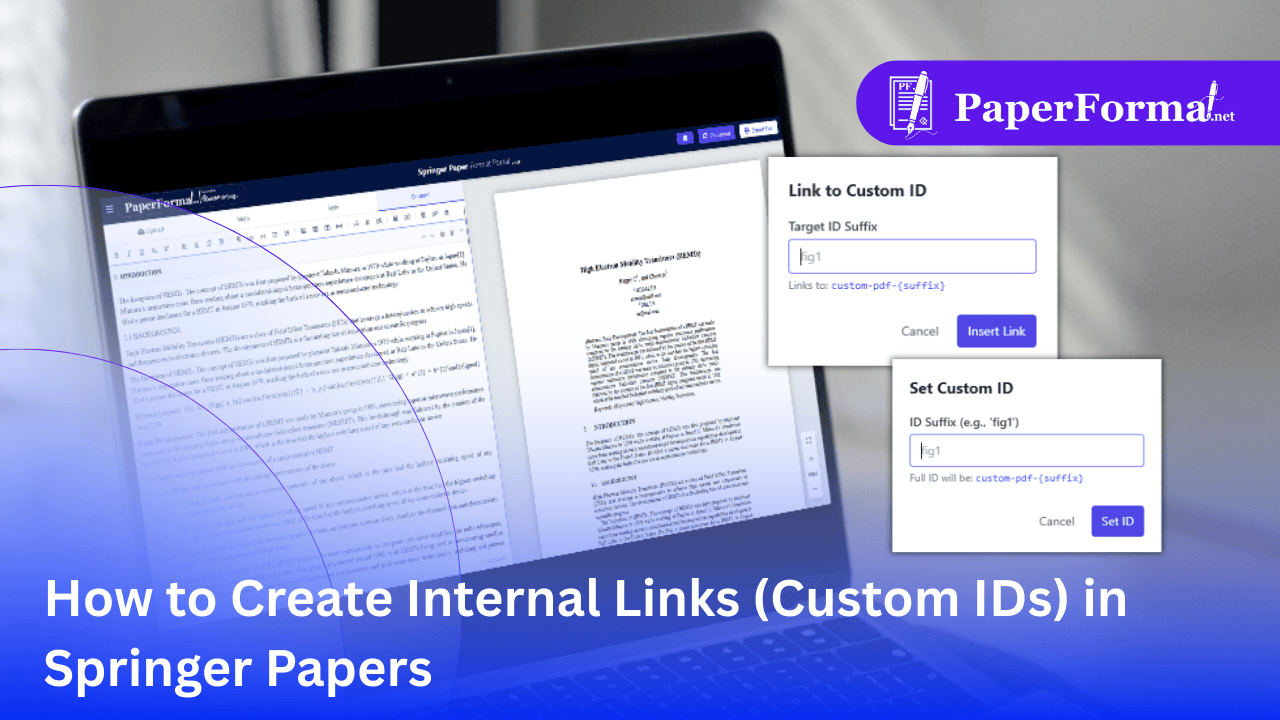
Why Use Custom IDs in Springer Formatting?
In Springer paper formatting (especially for Lecture Notes in Computer Science - LNCS), precision is key. You often need to guide the reader from a proof back to a specific Definition, Theorem, or Step.
While citations [1] and equations (1) are automated, you often need Custom Anchors for text-based references like "See Step 3.1 below."
PaperFormat.net provides a specific tool to create Internal Hyperlinks. You set a "Target ID" on the destination text and a "Link" on the reference text. In the final PDF, clicking the link jumps the reader instantly to the target.
Step 1: Set a Custom ID (The Target)
This creates the "Anchor" or destination where you want the reader to arrive.
- Select Text: Highlight the specific text, heading, or theorem title that serves as the destination (e.g., "Theorem 3.2").
- Click "Set Custom ID": Look at the toolbar menu. Click the "Set Custom ID" button (circled in orange in the image).
- Enter a Unique Name: A popup titled "Set Custom ID" will appear.
- ID Suffix: Type a short, unique identifier (e.g.,
theorem3,def-alpha, orstep1). - Set: Click the "Set ID" button.
- Result: This text is now a searchable target within the document.
- ID Suffix: Type a short, unique identifier (e.g.,
Step 2: Link to the Custom ID (The Trigger)
Now, create the clickable text that points to the anchor you just created.
- Select Text: Highlight the text you want to become a link (e.g., "refer to Theorem 3.2" or "see above").
- Click "Link to Custom ID": Click the chain-link icon in the toolbar labeled "Set Custom ID / Link" (circled in yellow in the image).
- Target the ID: A popup titled "Link to Custom ID" will appear.
- Target ID Suffix: Enter the exact same name you used in Step 1 (e.g.,
theorem3). - Insert: Click "Insert Link".
- Result: In the final PDF, clicking this text will instantly scroll the view to the location you tagged in Step 1.
- Target ID Suffix: Enter the exact same name you used in Step 1 (e.g.,
Step 3: Removing an ID or Link
If you need to remove a link or change a reference:
- Select the Linked Text: Highlight the text that currently has an ID or a Link attached to it.
- Click "Remove Custom ID": Look for the icon that depicts a broken link or a cloud with a slash (labeled "Remove Custom ID/Link" in the toolbar).
- Action: The system immediately removes the hyperlink code, reverting it to standard text.
Best Practices for Springer LNCS Linking
- Logical Naming: Use clear IDs like
proof1orsec4-algoso you don't get confused when linking later. - Manual Overrides: Use this feature if you need to link to a specific Algorithm step or a Supplementary Note that isn't covered by the automatic Figure/Table numbering system.
- Reader Experience: Proper internal linking is highly valued in digital proceedings (like SpringerLink), as it allows researchers to verify proofs and definitions quickly without scrolling manually.