
Why Use Custom IDs in IEEE Formatting?
In complex IEEE paper formatting, you often need to refer the reader back to a specific point, like "See Equation 4" or "Refer to the Methodology Section." While standard tools automate Figure/Table numbering, sometimes you need Custom Anchors for specific text, definitions, or theorems.
PaperFormat.net allows you to create Internal Hyperlinks. You set an "ID" (the destination) on one part of the text, and a "Link" (the trigger) on another. When exported to PDF, clicking the link jumps the reader instantly to the destination.
Step 1: Set a Custom ID (The Destination)
This creates the "Anchor" point where you want the reader to land.
- Select Text: Highlight the specific text or heading that serves as the destination (e.g., the title of a specific Theorem or a key term).
- Click "Set Custom ID": Look at the toolbar menu. Click the "Set Custom ID" button (circled in orange in the image).
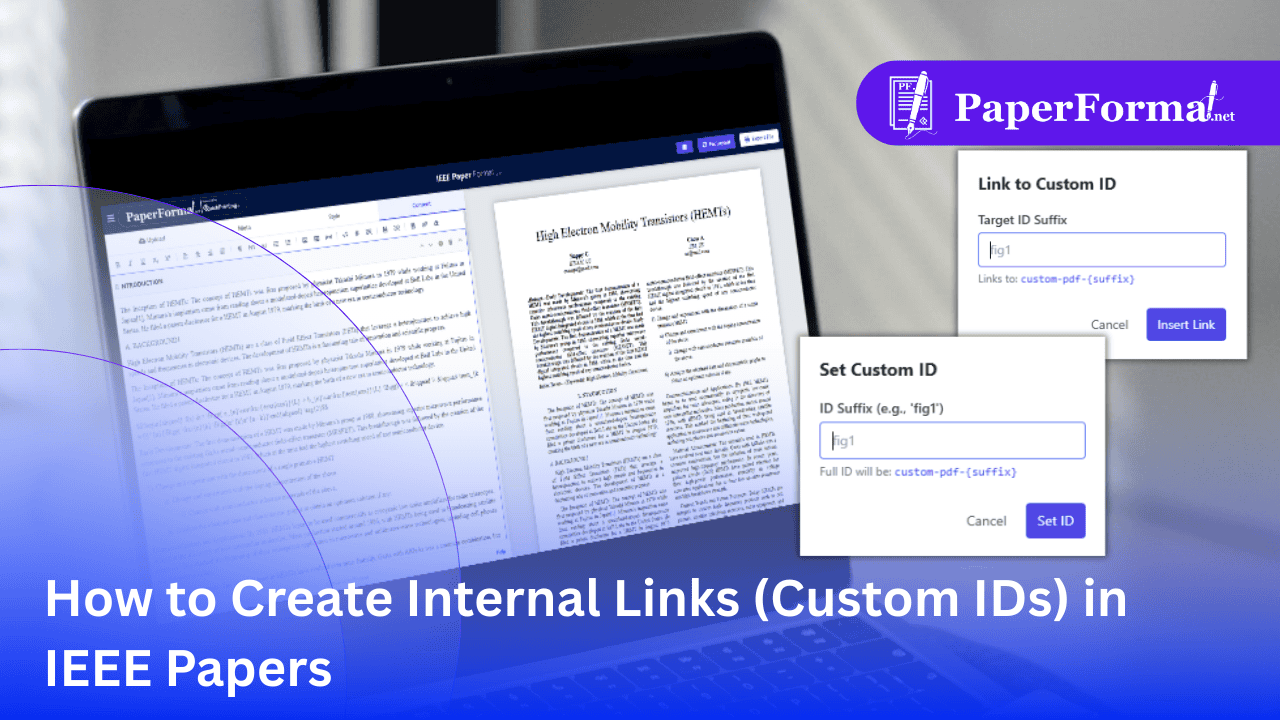
- Enter a Unique Name: A popup titled "Set Custom ID" will appear.
- ID Suffix: Type a short, unique name (e.g.,
fig1,theorem2, ormethod-step). - Set: Click the "Set ID" button.
- Result: This text is now a "target."
- ID Suffix: Type a short, unique name (e.g.,
Step 2: Link to the Custom ID (The Trigger)
Now, create the clickable link that points to the anchor you just made.
- Select Text: Highlight the text you want to be clickable (e.g., "See HEMT definition" or "Refer to Fig. 1").
- Click "Link to Custom ID": Click the chain-link icon in the toolbar labeled "Set Custom ID / Link" (circled in yellow in the image).
- Target the ID: A popup titled "Link to Custom ID" will appear.
- Target ID Suffix: Enter the exact same name you used in Step 1 (e.g.,
fig1). - Insert: Click "Insert Link".
- Result: In the final PDF, clicking this text will snap the view directly to the text you tagged in Step 1.
- Target ID Suffix: Enter the exact same name you used in Step 1 (e.g.,
Step 3: Removing an ID or Link
If you made a mistake or want to remove a hyperlink.
- Select the Linked Text: Highlight the text that currently has an ID or a Link attached to it.
- Click "Remove Custom ID": Look for the icon that looks like a broken link or an image with a slash (labeled "Remove Custom ID/Link" in the toolbar).
- Action: The system immediately strips the underlying code, turning it back into regular, non-clickable text.
Best Practices for IEEE Linking
- Unique Names: Always ensure your IDs are unique (e.g., don't use "intro" for two different sections).
- Navigation: Use this for Citations (
[1]) or Equations ((1)) if you want to manually override the automatic system and create custom jumps. - PDF UX: Internal linking significantly improves the user experience for reviewers reading your IEEE paper on a screen, allowing them to jump between proofs and references effortlessly.