
Beyond the Standard Indices: Abbreviations & Symbols
Standard college and institute paper formatting templates include a TOC, List of Figures, and List of Tables. But what if your thesis requires a "List of Abbreviations", "Nomenclature", or "List of Symbols"?
Doing this in Word is painful. You have to manually create a table, hide the borders, and fight with the alignment of the dots (leaders).
PaperFormat.net allows you to create Unlimited Custom Lists. You can generate a professionally formatted "List of Abbreviations" that matches the exact style of your Table of Contents, ensuring your project report looks consistent from start to finish.
Step-by-Step: Creating a New Custom List
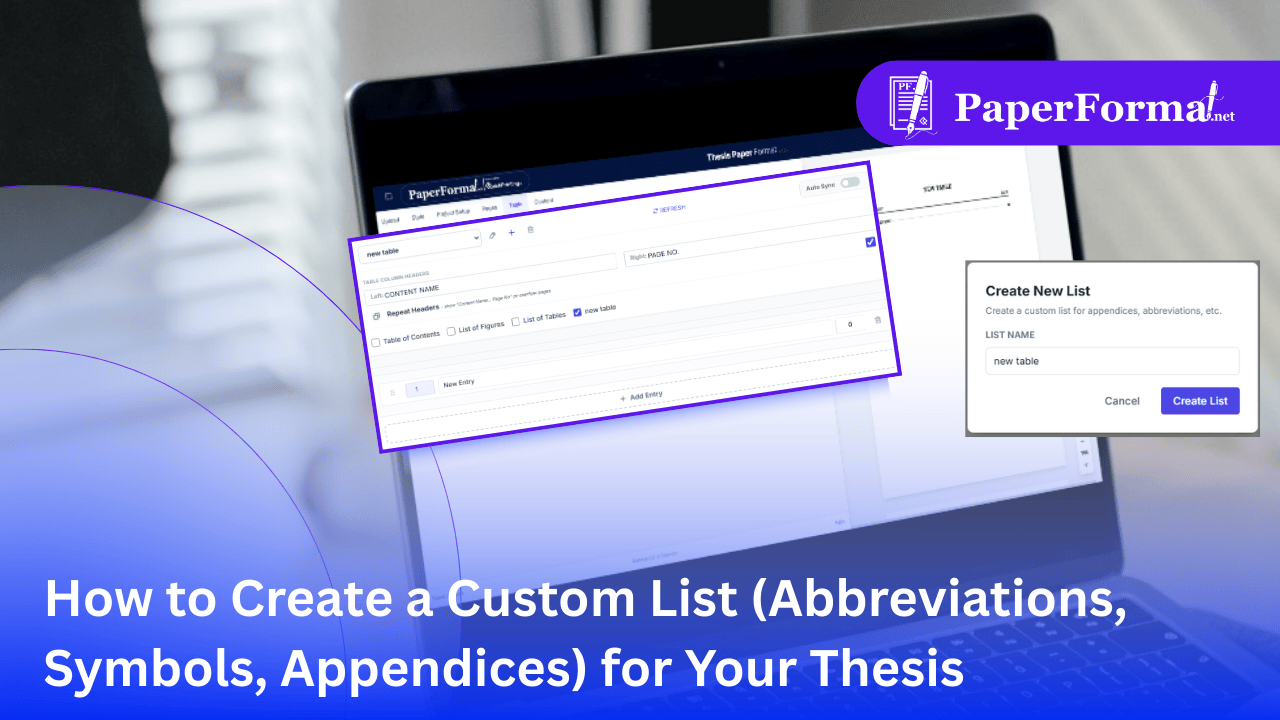
Refer to the screenshots above and follow these steps to add a specialized index to your document.
Step 1: Access the Table Module
- Navigate to the "Table" tab in the top navigation bar.
- This is where all your document indices are managed.
Step 2: Create the New List
- Look for the small Plus (+) icon next to the list dropdown menu (circled in the image).
- A popup modal titled "Create New List" will appear.
- Action: Enter the name of your list (e.g., "List of Abbreviations", "List of Symbols", or "Appendices") and click "Create List".
Step 3: Select and Enable
- Your new list (e.g., "new table") is now selected in the dropdown.
- Crucial Step: Check the box with your list's name at the bottom (e.g., "new table" or "List of Abbreviations") to make it visible in the document.
Step 4: Configure Headers
- Left Header: Rename "CONTENT NAME" to something relevant like "ABBREVIATION" or "SYMBOL".
- Right Header: Rename "PAGE NO." to "PAGE" or "DEFINITION" depending on your needs.
Step 5: Add Your Content (Manual Entry)
- Since this is a custom list, you usually add items manually.
- Click "+ Add Entry".
- Left Field: Type the abbreviation (e.g., "AI").
- Right Field: Type the page number or value (e.g., "12").
- Preview: As shown in the image, the system automatically formats this with the professional "dotted leader" style:
NEW ENTRY...........................................................................0.
Why Use This Feature?
- Professional Look: It guarantees that your "List of Abbreviations" looks exactly like your "Table of Contents." Same font, same spacing, same dot style.
- Institute Compliance: Many technical institutes (IEEE/Engineering) strictly require a Nomenclature section. This tool lets you add one without breaking your document's layout.
- Flexibility: You can use it for Appendices, Glossaries, or even a List of Equations.