
Beyond the Standard Template: Customizing Your Institute Paper
While most college and institute paper formatting templates come with standard pages like the "Cover Page" and "Abstract," every student's needs are unique. You might need a "Dedication" page for your parents, a "List of Abbreviations" for technical terms, or a specific "Declaration of Originality" required by your university.
Standard word processors make this tricky—adding a new page often breaks the page numbering logic (switching from Roman i, ii to Arabic 1, 2).
PaperFormat.net handles this effortlessly. When you add a Custom Page, the system intelligently inserts it into the document flow, applying the correct margins, headers, and pagination automatically.
Step-by-Step: Adding a New Page
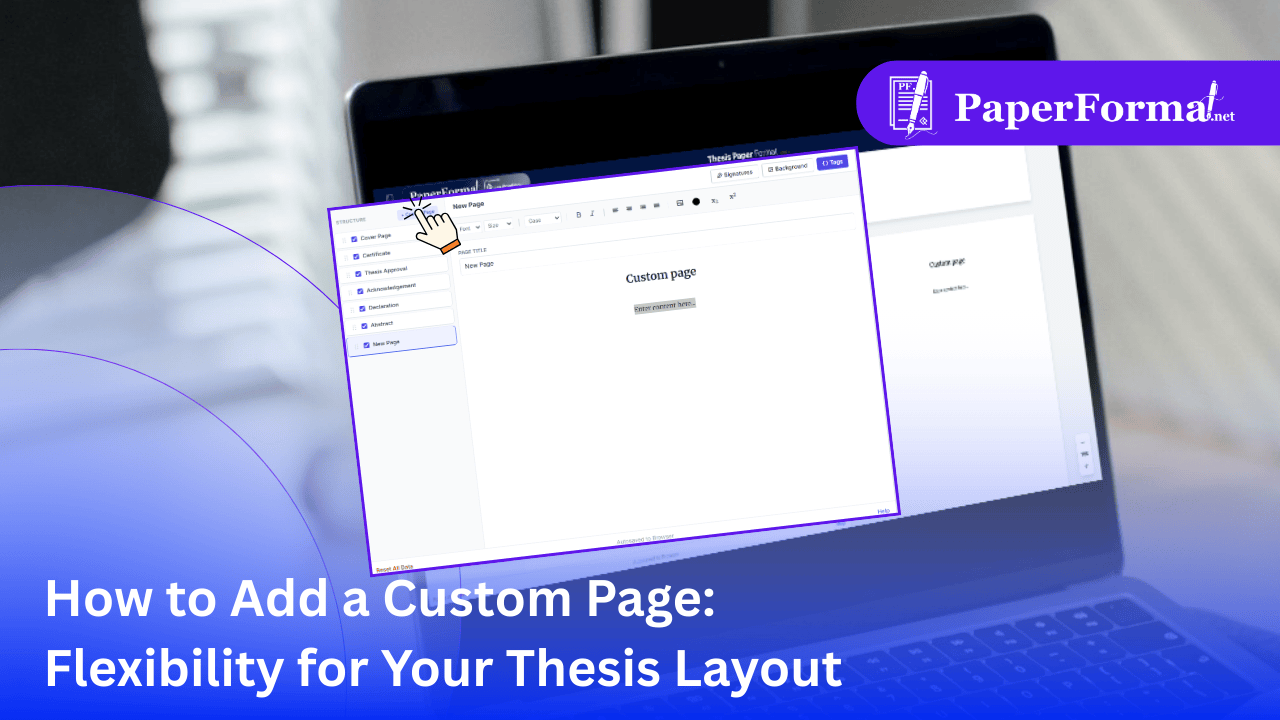
Refer to the screenshot above and follow these steps to expand your document structure.
Step 1: Access the Pages Module
- Navigate to the "Pages" tab in the top navigation bar.
- This view manages the "Front Matter" (Preliminary Pages) of your thesis.
Step 2: Click the "Custom Page" Button
- Look at the top of the STRUCTURE sidebar on the left.
- Click the button labeled "+ Custom Page" (circled in the image).
Step 3: Select and Rename
- A new item labeled "New Page" will appear at the bottom of your sidebar list.
- Click on it to open the editor.
- Action: Change the "Page Title" field from "New Page" to whatever you need (e.g., "Dedication" or "List of Symbols"). This title will automatically appear at the top of the page in the final PDF.
Step 4: Add Your Content
- The editor works just like a standard word processor. You can type your text, center align it, or add bold formatting.
- Institute Tip: For a "Dedication" page, keep the text brief, centered, and italicized. For a "Declaration," use the standard legal text provided by your college.
Step 5: Reorder (Optional)
- Need the Dedication to appear before the Abstract?
- Simply drag and drop the page items in the left sidebar to change their order. The page numbers will update automatically to reflect the new sequence.
Why This is Better Than Word
- Pagination Logic: If you insert this page in the "Front Matter" section, our system knows to number it with Roman Numerals (e.g.,
iv). If you were to do this in Word, you'd likely break your section breaks. - Header Consistency: The new page automatically inherits the global headers and margins you set in the Style tab, ensuring it looks like it belongs in the project report.
- Zero Layout Shift: Adding a custom page won't accidentally push your Chapter 1 content down or create blank gaps.