
PDF vs. Backup File: What You Need to Know
In IEEE paper formatting and Springer LNCS workflows, there is a critical difference between your output files:
- The PDF: This is a "flat" file for printing. You cannot easily edit text or move images in a PDF once it is generated.
- The Backup File (.json): This is your Project Source Code. It saves every single setting—margins, author affiliations, equation numbering, and images—so you can reload the project later and continue editing exactly where you left off.
PaperFormat.net allows you to export this "Save State" at any time. We highly recommend doing this after every major editing session.
Step-by-Step: Exporting Your Backup
Step 1: Finish Your Editing Session
- Ensure all your latest changes (text, images, equations) are visible in the preview pane.
- Look at the top right corner of the navigation bar.
- Click the "Export File" button (circled in orange in the image).
Step 2: Wait for Processing
- The system will briefly scan your document to compile all data, including base64 images and LaTeX equations.
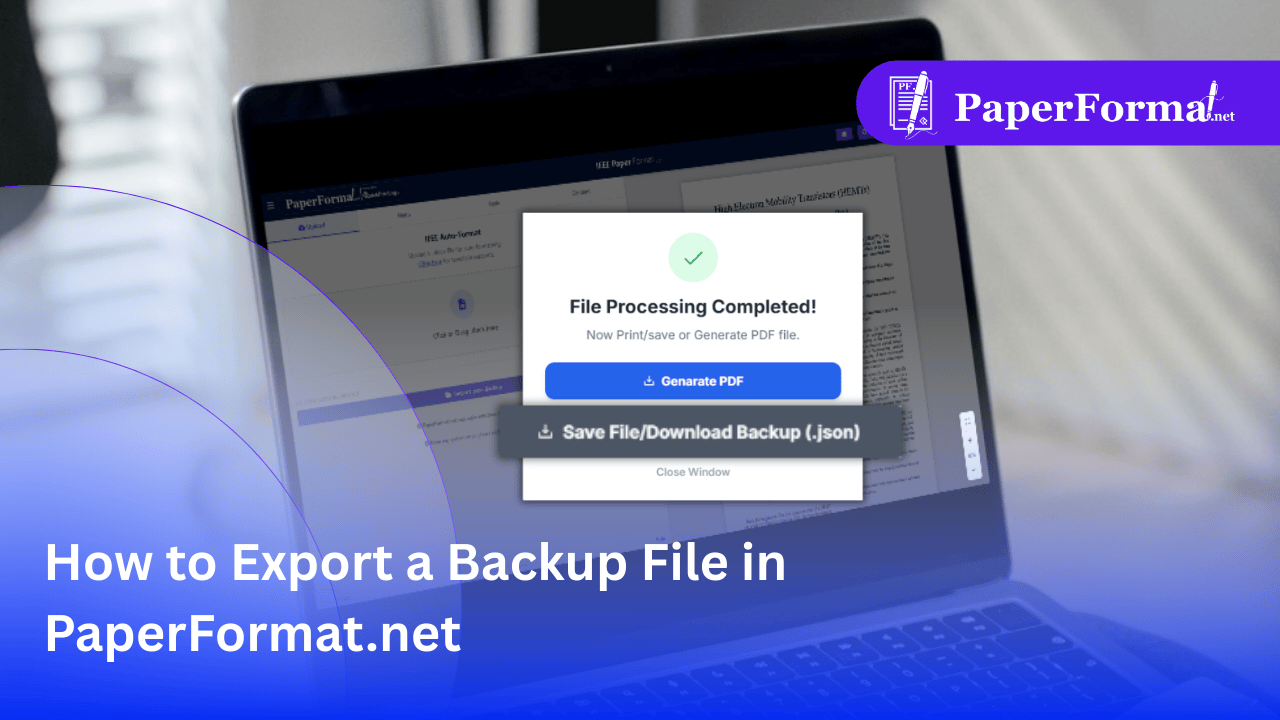
- A popup modal will appear with the message: "File Processing Completed!".
Step 3: Select the Backup Option
- You will see two blue buttons.
- Generate PDF: Creates the print file.
- Save File/Download Backup (.json): Creates the editable save file.
- Action: Click the button labeled "Save File/Download Backup (.json)" (highlighted in the image).
- Result: A file (e.g.,
IEEE_Paper_Backup_paperFormat.json) will download to your computer.
How to Use This Backup Later
If you change computers or need to fix a typo next week:
- Open PaperFormat.net.
- Go to the Upload tab.
- Click the blue "Import Json Backup" button (at the bottom).
- Select this file. Your entire IEEE or Springer paper will reload instantly, ready for editing.