
The Difference Between DOCX and JSON
In Springer paper formatting and IEEE workflows, it is crucial to understand your file types:
- DOCX (Word): This is for starting fresh. The system reads the text and attempts to format it.
- JSON (Backup): This is a perfect snapshot. It restores your exact margins, custom CSS, author details, and equation numbering exactly as you left them. It is the only way to move your project between computers without losing data.
Step-by-Step: Restoring Your Project
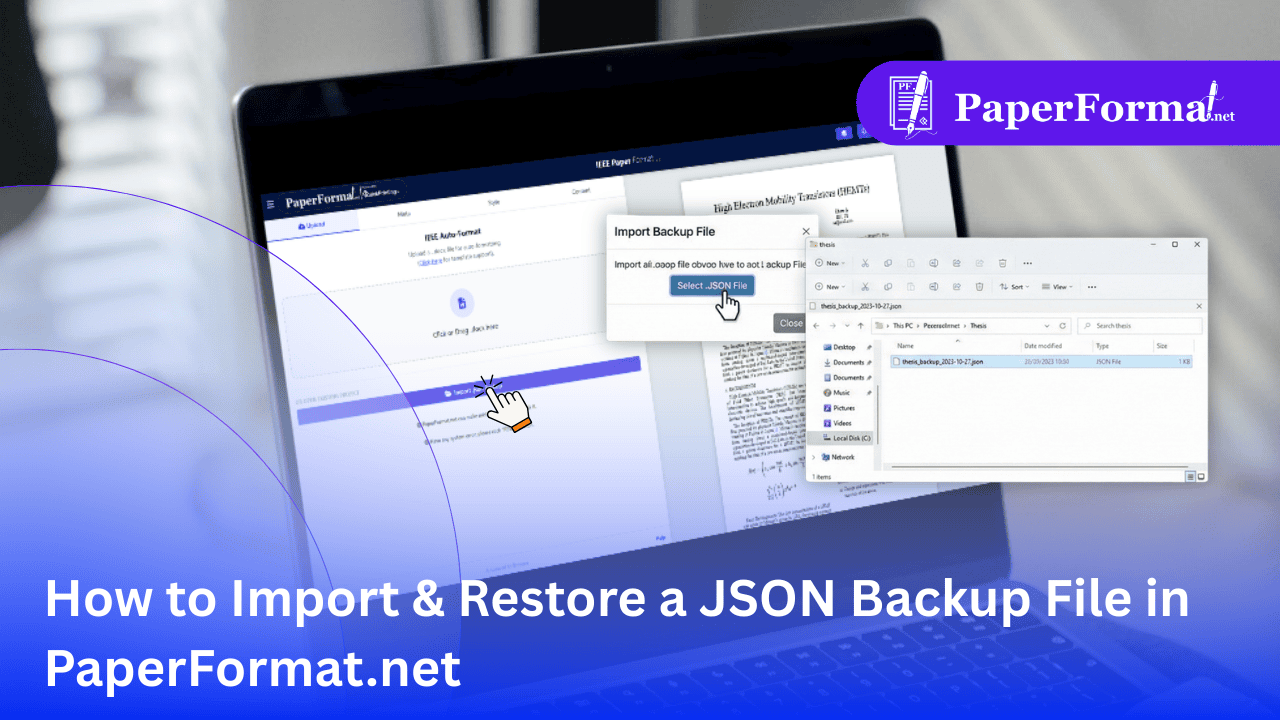
Refer to the screenshot above and follow these steps to resume your work instantly.
Step 1: Access the Upload Tab
- Open the PaperFormat.net portal (IEEE or Springer version).
- Click the "Upload" tab in the top navigation bar.
- Note: If you have content already on the screen, this action might overwrite it, so ensure you are ready to replace the current session.
Step 2: Locate the Import Button
- Ignore the dashed box: The large "Click or Drag .docx here" box is only for Word documents.
- Find the Blue Button: Look at the bottom of the screen for the wide blue button labeled "Import Json Backup" (indicated by the arrow in the image).
Step 3: Select Your File
- Click the button and select the
.jsonfile from your computer (e.g.,backup_springer/IEEE_paperformat.json). - Processing: The system will instantly reload the entire workspace.
Step 4: Verify Restoration
- Check the Meta tab to see if your Title and Authors are back.
- Check the Style tab to ensure your specific Springer/IEEE margins are applied.
- Your project is now exactly where you left off.
Troubleshooting Common Errors
- "Invalid File Format": This usually means you tried to drag a
.jsonfile into the.docxdashed box. Make sure you use the specific blue button at the bottom. - "Version Mismatch": Rarely, if you use a backup from a very old version of the portal, some settings might reset to default. Always check your Style tab after importing.