
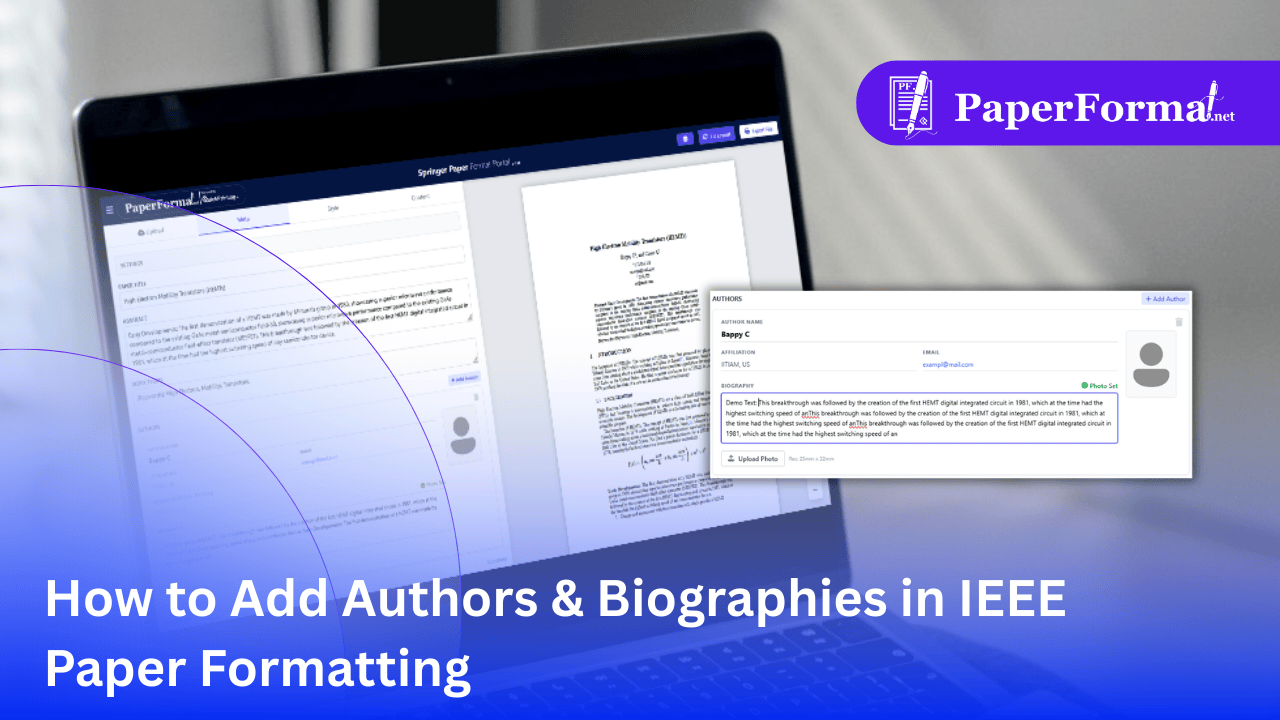
The Dual Role of Authors in Springer Papers
In Springer paper formatting (including LNCS), authors appear in two key locations:
- The Header (Top): A centered list of names and affiliations (e.g., "Institute, City, Country") on the first page.
- The Biography (End): A detailed section at the very end of the paper featuring a photo and a short bio for each author (common in journals or specific extended abstract formats).
PaperFormat.net automates this split. You enter the data once in the Meta tab, and the system intelligently places the name at the top and the full biography at the bottom.
Step-by-Step: Managing Author Details
Refer to the screenshots above and follow these steps to build your author profiles.
Step 1: Access the Meta Tab
- Navigate to the "Meta" tab in the top navigation bar.
- Scroll down to the "AUTHORS" section.
Step 2: Add Basic Details (For the Header)
- Add New: Click the "+ Add Author" button to create a new entry.
- Fill Fields: Enter the Name, Affiliation (Department, University, City, Country), and Email.
- Visual Check: As shown by the red arrow in the image, the system automatically formats this into the standard Springer "Author Block" at the top of the first page, handling the superscripts (1, 2) for affiliations automatically.
Step 3: Adding Photo & Biography (For the End of Paper)
Crucial Formatting Rule: In Springer style, the detailed biography section only appears if you provide bio text and a photo.
- Write Biography: In the "BIOGRAPHY" text box, write your professional background (e.g., "Jane Doe received the Ph.D. degree in...").
- Upload Photo: Click "Upload Photo". The system expects a standard headshot.
- Note: The system automatically resizes this to the required dimension and wraps the text around it.
- The Result: As shown in the preview on the right, filling these fields automatically generates a "Biography Section" at the very end of your research paper.
Important: How the Display Logic Works
- Header Only: If you only enter Name/Affiliation/Email, the author will appear only at the top of Page 1.
- Header + Bio: If you also add a Photo and Biography text, the author will appear at the top AND at the end of the paper.
This automation ensures you don't have to manually format wrapping text around images for the biography section, which is often difficult to align in standard word processors.