
The Rule: To Number or Not to Number?
In IEEE paper formatting, page numbering is a common point of confusion.
- Draft Submissions: Reviewers often require page numbers so they can say "See spelling error on page 3."
- Final "Camera-Ready" Papers: IEEE often requires you to remove page numbers because they will stamp the official proceedings numbers later.
PaperFormat.net gives you a global toggle. You can turn page numbers ON for your review draft and OFF for your final export with a single click, without editing individual pages.
Step-by-Step: Configuring Page Numbers
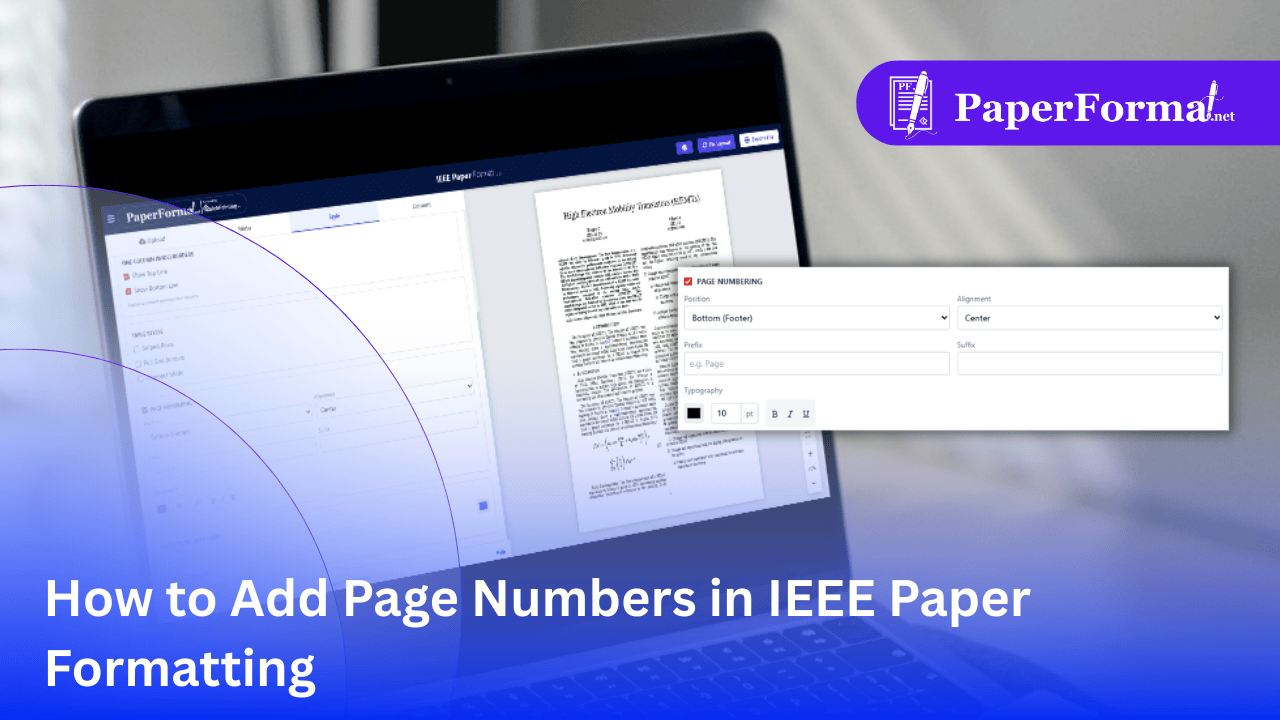
Refer to the screenshot above and follow these steps to control your pagination.
Step 1: Access the Style Tab
- Navigate to the "Style" tab in the top navigation bar.
- This panel controls global document settings, including headers and footers.
Step 2: Enable Page Numbering
- Scroll down to the section titled "PAGE NUMBERING" (circled in purple in the image).
- Action: Check the box next to "PAGE NUMBERING" to activate it.
Step 3: Configure Position & Alignment
- Position: Select where the number appears. The standard for IEEE drafts is "Bottom (Footer)".
- Alignment: Select "Center". This is the most common placement to avoid interfering with the two-column text.
Step 4: Customize Styling
- Typography: You can adjust the font size (e.g., 10 pt) and weight to ensure it is legible but not distracting.
- Prefix/Suffix: If required, you can type "Page " in the Prefix box so it reads "Page 1", "Page 2", etc.
Step 5: Visual Verification
- Look at the preview pane on the right. As indicated by the arrow in the image, the page number (e.g., "1") will instantly appear at the bottom center of your document.
When to Use This Feature
- Peer Review: Always enable page numbers when sending your paper to colleagues or submitting a "Review Manuscript" to a journal.
- Final Submission: Before you click "Export PDF" for the final upload to IEEE Xplore, simply uncheck the "PAGE NUMBERING" box. This ensures your final PDF is clean and ready for the editor's stamp.