
From Digital Workspace to Physical Thesis
In college and institute paper formatting, the final PDF is the only thing that matters. It must be "Print-Ready," meaning the margins, fonts, and images look exactly the same on paper as they do on your screen.
Standard "Save as PDF" functions in browsers often ruin formatting by adding headers or changing page sizes.
PaperFormat.net uses a dedicated PDF Generation Engine. It compiles your entire workspace—Cover Page, Certificates, Table of Contents, Chapters, and Bibliography—into a single, high-resolution file that adheres strictly to your institute's formatting rules.
Step-by-Step: Generating Your PDF
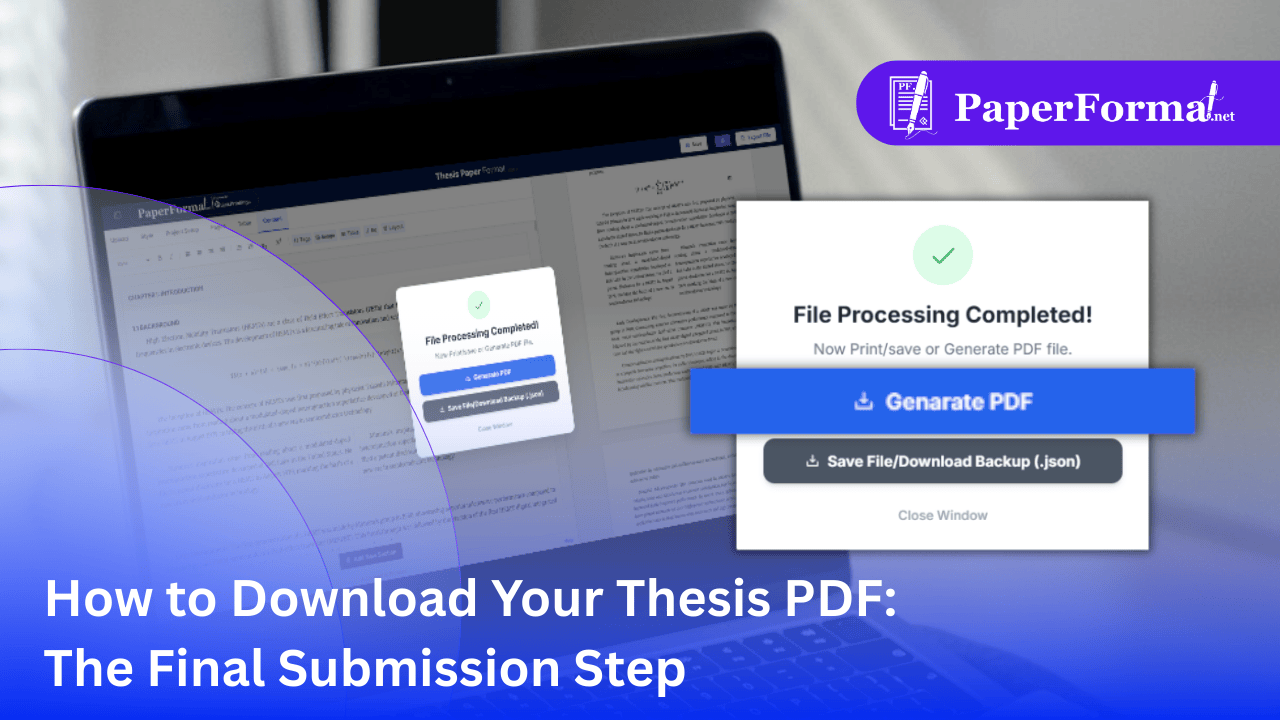
Refer to the screenshot above and follow these steps to create your final document.
Step 1: Final Review
- Before downloading, take a moment to scroll through your content preview on the right side of the screen.
- Check that your Table of Contents is updated and your Page Numbers are correct.
Step 2: Click "Export File"
- Look at the top right corner of the navigation bar.
- Click the button labeled "Export File" (circled in red in the image).
Step 3: Wait for Compilation
- The system will show a "Processing" status. During this time, it is:
- Rendering high-quality equations.
- Flattening images to ensure they print correctly.
- Calculating final page numbers for the index.
- A popup modal will appear confirming: "File Processing Completed!".
Step 4: Select "Generate PDF"
- You will see two options. For submission, choose the first one:
- Click the blue button: "Generate PDF" (highlighted in the image).
- Action: Your browser will download the file (e.g.,
Thesis_Final.pdf) to your local drive.
What "Print-Ready" Means for Institute Papers
- Embedded Fonts: We embed standard fonts (like Times New Roman or Computer Modern) into the PDF so that even if the print shop's computer doesn't have them, your thesis looks perfect.
- Vector Graphics: Your equations and charts are saved as vectors, meaning they remain crisp and sharp no matter how much you zoom in.
- Correct Margins: The file respects the "Binding Margin" (Gutter) you set in the Style tab, ensuring no text gets cut off during the binding process.