
The First Impression Matters: Your Institute Cover Page
In college and institute paper formatting, the Cover Page (or Title Page) is strictly regulated. The font size of the title, the position of the university logo, and the spacing of the author's name must match the institute's official sample exactly.
Manually aligning this in Word is frustrating. If you hit "Enter" too many times, the year pushes onto the next page.
PaperFormat.net uses a Dynamic Tag System. Instead of typing "2026" or "Master of Science" directly on the page, you place "Smart Tags" (Variables). This ensures that if you update your title in the project settings, your cover page updates automatically, maintaining perfect layout alignment.
Step-by-Step: Designing Your Cover Page
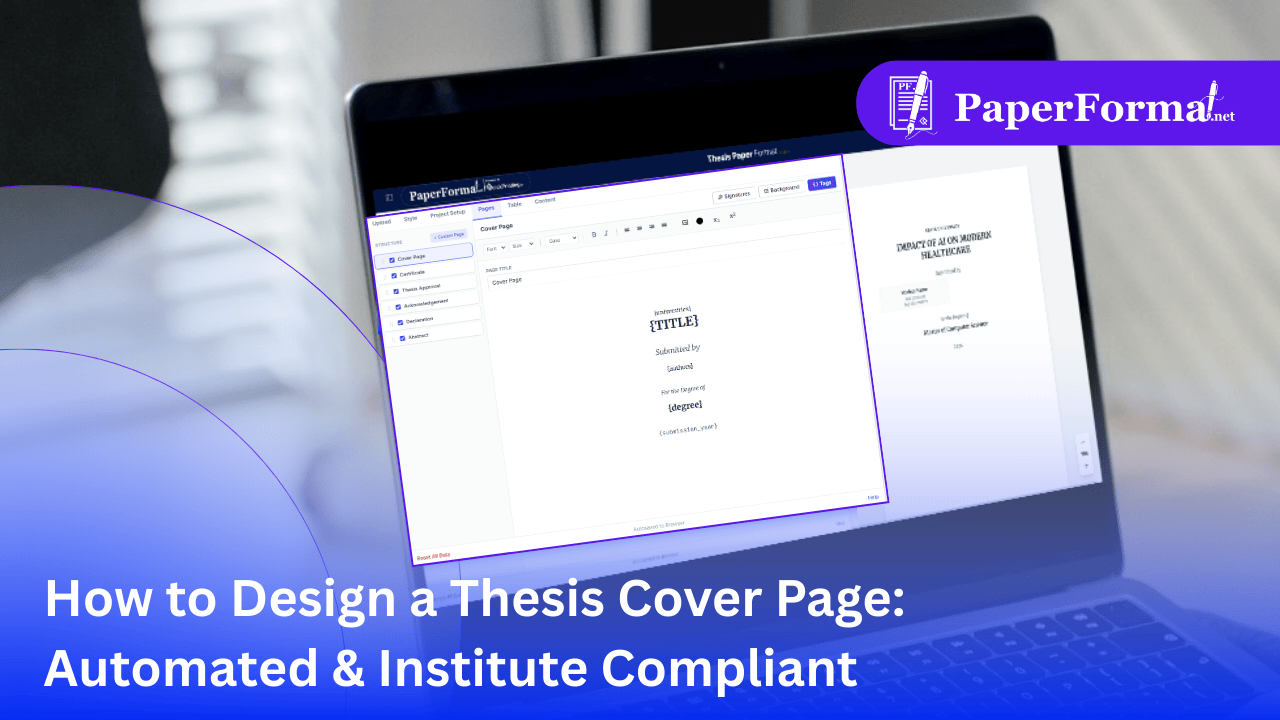
Refer to the screenshot above and follow these steps to build a flawless title page.
Step 1: Access the Pages Module
- Navigate to the "Pages" tab in the top navigation bar.
- In the STRUCTURE sidebar on the left, check the box for "Cover Page" to enable it.
Step 2: Understanding the Smart Editor
- Look at the central editor area. You will see text like
{TITLE}and{degree}instead of actual words. - This is crucial. These are placeholders. They pull the data you entered during the Project Setup phase.
- The Benefit: As shown by the red arrow pointing to the preview on the right, the system automatically replaces
{degree}with "Master of Computer Science".
Step 3: Using the Tag Menu (The Magic Button)
- Need to add more info? Click the "{ } Tags" button in the toolbar (circled in the image).
- A dropdown menu appears with available variables:
{title}: Inserts your Thesis Title.{submission_year}: Inserts the Year (e.g., 2026).{authors}: Creates a perfectly formatted grid of student names/rolls.{supervisors}: Inserts your Guide's name.
- Action: Click any tag to insert it into the editor.
Step 4: Layout & Styling
- Treat the editor like a normal word processor. You can:
- Center Align: Use the alignment tools in the toolbar.
- Bold/Resize: Highlight the
{TITLE}tag and make it Bold or 20pt font. The final output will reflect this style. - Spacing: Add space between tags to push the "Submitted by" section lower on the page.
Why Use Tags Instead of Typing?
- Institute Compliance: Colleges often change their required format (e.g., moving the Year to the top). With tags, you just drag the
{submission_year}tag to the top, and the formatting stays perfect. - Consistency: It prevents typos. You won't accidentally spell your own name differently on the Cover Page vs. the Declaration because both pull from the same
{authors}source. - Visual Perfection: As seen in the preview, the system handles the vertical alignment, ensuring your thesis title page looks professionally typeset.