
Why Body Text Styling is Critical for Institute Papers
In college and institute paper formatting, the "Body Text" accounts for 90% of your document. If this text is messy—with inconsistent fonts, uneven spacing, or ragged alignment—your entire thesis looks unprofessional.
Universities are rigid about these rules. Standard requirements often include Serif fonts (like Times New Roman), Justified alignment, and specific Line Spacing (1.5 or 2.0).
PaperFormat.net solves this by applying a Global Style. You define the rule once in the "Style" tab, and every paragraph in your 300-page project report updates instantly to match.
Step-by-Step: Configuring Body Text Styles
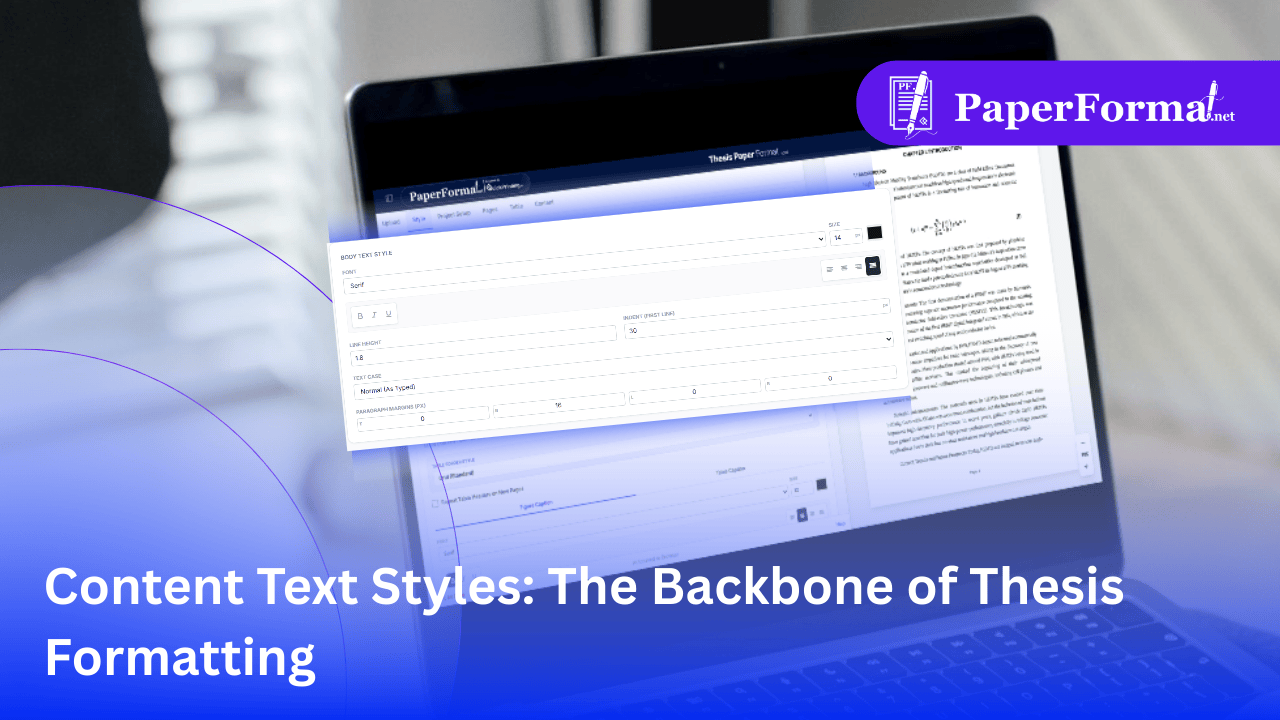
Refer to the screenshot above and follow these steps to lock in your document's typography.
Step 1: Access the Body Text Settings
- Navigate to the "Style" tab in the top navigation bar.
- Scroll down to the section explicitly titled "BODY TEXT STYLE".
Step 2: Choose Standard Academic Fonts
- Font Family: Click the dropdown menu. As shown in the image, selecting "Serif" is the safest bet for most thesis formatting guidelines, as it mimics standard fonts like Times New Roman.
- Font Size: The standard for college papers is usually 12 px or 14 px. The image shows 14 px selected—ensure this matches your specific institute's rule.
Step 3: Perfect Alignment & Formatting
- Alignment: Look at the alignment icons on the right. The highlighted icon in the image is "Justified" (lines of equal length). This is the Gold Standard for formal academic writing, creating clean edges on both sides of the page.
- Basic Formatting: Avoid using Bold or Italic for the entire body text. Keep the B, I, and U toggles off unless you have a specific reason.
Step 4: Spacing and Indentation (Crucial for Readability)
- Line Height: This controls the space between lines. The image shows a value of 1.8. For most institute project reports, a value between 1.5 and 2.0 is mandatory to allow space for professors to write comments.
- Indent (First Line): Academic paragraphs usually start with an indentation. Setting this to 30 px (as shown) automatically indents the first line of every new paragraph, so you don't have to hit "Tab" manually.
Step 5: Paragraph Separation
- Paragraph Margins: Instead of hitting "Enter" twice to separate paragraphs, use the "Paragraph Margins (PX)" settings.
- Setting the Bottom (B) margin to 16 px ensures a clean, consistent gap between paragraphs throughout your entire thesis.
Why Use Global Styles Instead of Local Editing?
- Consistency: If you change the font size from 12 to 14 here, it updates everywhere. You won't find a random paragraph in size 11 on page 50.
- Compliance: If your supervisor suddenly asks for "Double Spacing," you just change Line Height to 2.0 in this one panel, and your whole document is fixed.
- Cleanliness: It prevents the "Frankenstein" effect where copying text from different websites brings in weird fonts and colors.